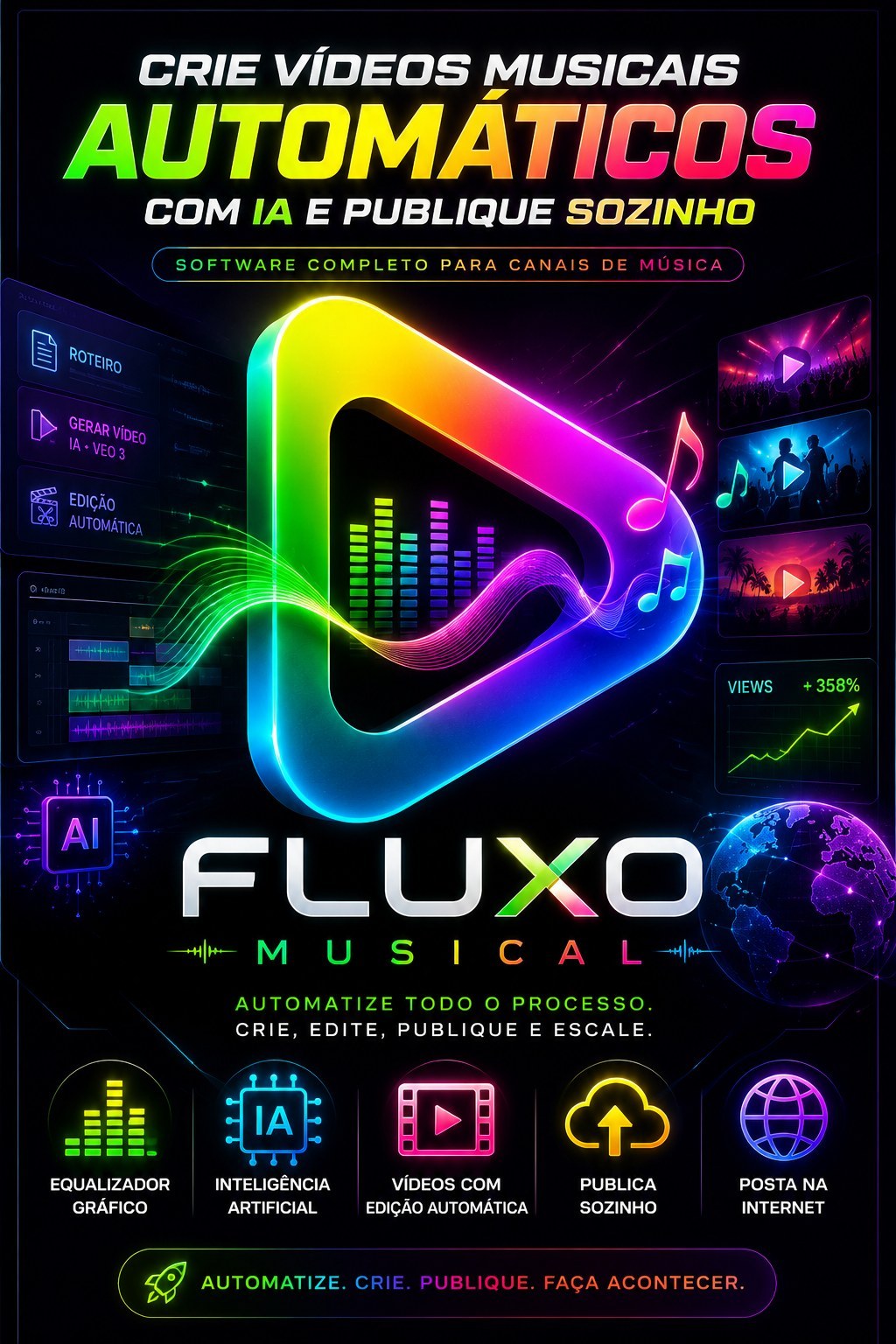
public demonstration without download or serial
Fluxo Musical Visual editor for dark music channel
Musical Flow — YouTube-ready music videosTool that turns music into publishable video. You bring your own songs or let the AI compose everything. It mixes your background images and videos, cuts,...
1617public views
Videodemo available
3related areas
Did you like this tool?
Take this for a stronger offering: full access, combo with training or the master version with larger window.
Presentation
Specifications
Compatibility
Windows 10/11. Recommended: Windows 11.
Last updated22/09/2026 15:39
Version/download
link atualizado em 22/09/2026
Public access typePresentation, video and description only. Download and serial remain protected.
Purchase Shortcut
This space welcomes those who have already seen the presentation and are ready to move on.
What This Tool Does
Musical Flow — YouTube-ready music videos
Tool that transforms publishable video music. You bring your own songs or let the AI compose everything. It mixes your background images and videos, cuts, applies effects, writes singing captions, creates the cover, generates SEO and — if you want — publishes alone on your YouTube channel, already scheduled. Everything in batch, one video different from the other.
What is ready in the output folder
- Final video .mp4 — 720p, 1080p, 1440p, 4K or vertical 9:16
- <video>_SEO.txt — title, description, tags and chapters with the tempo of each song
- <video>_LETRA.txt — the lyrics, when the song was generated by AI
- Cover (thumbnail) in 16:9, with or without text — you choose
- Synced subtitles already burned in the video
Why is he different
- One project per channel. Each channel stores its own songs, folders, settings, artwork, SEO and YouTube account. Switching channels means choosing the project from the top box — nothing to reconfigure.
- Publish alone. When finished recording, it sends it to the right channel and schedules the date and time inside the YouTube. You don't need to leave the program open until it's time to publish.
- Watched folders. Point your image and video folders once; new material enters the next generation on its own.
- Never repeat. Each video draws an unprecedented combination and chops the videos into short snippets.
- Real lot. Order 1, 10 or 50 videos and follow the queue. If the power goes out or you close it in the middle, it picks up where it left off.
- Two formats. Long playlist (1 hour, 3 hours) or one video per song.
- Works without any paid key if you use your music, image folders and subtitles in local mode.
Download and access
Installation and first use
- Download the file. If it is the .zip, unzip the entire folder before clicking on anything — just dragging the program out doesn't work. If it is the installer, just go ahead: it installs without asking for an administrator password and creates the shortcut.
- Open the Musical Flow. You don't need to install anything else: everything is already inside.
- Enter with email and password for your account — the same as the platform. There is no serial; Access is granted at each opening, so you need internet to enter.
- The tool opens in your browser, at the address of your own computer. It's normal: it runs on your machine.
- A installed version appears at the top, next to the name. It is the first data that support asks for.
- To actually close, use the button ⏻ in the upper right corner. Closing just the browser tab leaves the program running in the background.
The top buttons
- Editor e Magic Pipeline — both ways of working.
- Project box e ? — change channels and manage projects.
- Queue — opens the list of what is being recorded.
- ? — opens this tutorial within the program.
- ! — Report problem: saves a diagnostic file on your Desktop for you to send to support.
- ⚙ — Settings.
- ⏻ — ends the program.
- Flags — the entire interface in Portuguese, English, Spanish, French, German and Japanese.
Projects — one channel, one project
This is the feature that changes the routine of those who play more than one channel. Each project keeps everything: the songs in the list, the media folders, the resolution, the effects, the cover text, the SEO prompt, the output folder, and the YouTube channel that receives the videos.
- Change channel: choose the project in the top box. The entire screen changes together. If the switch does not complete for any reason, the box returns alone to the project that is currently on air — it never shows a channel that is not open.
- Button ?: create, rename, delete and save. The list shows how many songs and media each project has, when it was changed and which channel it publishes on.
- New project is already configured: it copies your current settings and starts with just the blank folders, so as not to inherit the images from the previous channel.
- Save alone while you stir. Delete a project does not turn off no music or pictures from your computer.
Path 1 — Magic Pipeline (the easiest)
For those just starting out: a prompt and it does everything — composes the music, searches for the images, records the videos and even publishes, if sending is turned on.
- Click on the tab Magic Pipeline, at the top.
- Write the universal channel prompt — what the channel is, not just one song.
E.g.: night lo-fi to study, soft piano and rain, bedroom atmosphere at night
E.g.: country folk roots of sofrência with viola, dirt road and bar
E.g.: 528 Hz of healing and deep meditation - Escolha how many songs, o language and if it is instrumental.
- In Result, choose 1 video per song or Single playlist.
- In Where do the images in the videos come from?, turn on the sources: Stock, KIE, Meta AI or My folders. Connect at least one.
- Click Create everything automatically and follow along Queue.
The Magic Pipeline reuses the Editor settings: resolution, effects, viewer, cover, SEO and YouTube channel. Configure the Editor once and the rest becomes routine.
Path 2 — Editor (with your songs)
- Column 1 — Songs. Click Folder or +Files, or drag the MP3s to the screen. The button ? monitors a folder (new music comes in alone) and the ⇄ shuffles the order. Avoid repeating music draw first what never became a video; Release all reset this control.
- Column 2 — Image and effects. Click +Watched folder and point your image and video folders. Turn on the power switch Media Sources and link each folder that should go in. O weight defines how much each folder appears.
- Choose background mode: Randomize everything, Dynamic Background (scene changes all the time) or One video per media.
- Column 3 — Extras. Turn on whatever you want: SEO, publication on YouTube, cover, text in the video, subtitles, audio visualizer and channel logo.
- Bottom bar. Set video type, codec, resolution, FPS, maximum duration, output folder, file name and number of videos.
- Click GENERATE. Each video becomes an item in the Render Queue.
Publish to YouTube alone
No card Publish to YouTube (Extras column). Each project publishes on its channel — the video from the country channel will never end up on the lo-fi channel.
Link account (once per account)
- In Google account, click + to register the account and give it a name.
- Click Login to this account. Open a normal Chrome window: You are the one who enters the email and password, as with any login. The program never asks for or stores your Google password.
- Click Search my channels and choose, in Channel that receives the videos, the channel for this project. Accounts with multiple channels all appear in the list.
How to publish
These are the questions that YouTube asks in every video, answered only once:
- Video audience — content for children or not.
- Made with artificial intelligence — declare, do not declare, or leave as YouTube mark.
- In-video ads — on (monetized channel) or off.
- Who can see — public, unlisted, or private.
- Channel playlist — optional, and it creates the playlist if it doesn't already exist.
- Recording location — optional.
- End screen and cards — how many cards and from what second.
When to publish
Scheduling is done inside the YouTube. In other words: after the video uploads, it publishes on the scheduled date even when your computer is turned off.
- Several per day, spaced apart — how many per day, what time it starts and every few hours.
- One per day, at the same time — fixed hour and minute.
- On certain days of the week — you mark the days.
- Start publishing on the day — the date the schedule starts.
Track shipments
- Send videos that are already ready — puts what has already been recorded before in the channel queue.
- View submissions — the list with everything that went up, what is going up and what failed. You can start, pause and try again.
- Warning on the video card itself — when sending fails, the card turns orange with the reason in plain language and a button Try sending again. Published video shows the link see on channel. Recorded video that did not make it into the queue also warns, instead of turning green as if everything was ok.
- Tag in file name — he who has already risen wins
___upload_ok at the end of the name. This is how you look at the folder and know what has already been published, and this is how it never uploads the same video twice. - Daily channel limit — when the YouTube blocks the channel due to too many uploads on the day, the program warns and resumes later, without losing the queue.
___upload_ok at the end of the name. This is how you look at the folder and know what has already been published, and this is how it never uploads the same video twice.Render queue
- Each video becomes a card with the current stage and estimated time. Can you mark all, cancel marked, remove marked, clean completed and close the queue.
- Resume alone. If the power runs out or you close it in the middle, the next opening, what was half finished goes back to the queue.
- One copy only sends you in the queue. If you open the program twice, it warns you — two copies recording at the same time will corrupt the video.
- Queue speed (in Settings): the program measures your computer and decides how many videos to record at the same time. You can set it to 1, 2 or 3.
Features quick guide
Media Sources
- Automatic mode — the tool calculates how much media the video needs, searches, downloads and mixes it by itself.
- Automatic Stock — Pixabay and Pexels, scenes linked to the channel's theme (free keys required).
- Paid AI (KIE AI) — exclusive images and videos, generated on the spot.
- Meta AI/vibes — free generation using your own accounts, registered in Settings. It's a beta feature: if the site changes, it may crash for a few days, so always keep a second source connected.
- My folders — your watched folders, each with a weight which defines how much it appears.
- Single media — what you dragged straight to the screen.
- Video media — how many scenes are in each video. More media = less repetition.
- ↻ Re-scan folders right away when you've just copied new files.
Image Effects
- Subtle movement — slow zoom, pan and drift; takes the air out of a stopped slide.
- Particles — space or dust above the scene.
- Chop videos — cuts long videos into chunks min a max seconds. The default 2 to 4 seconds gives the clip pace.
- Duration of each image — how long a photo stays on the screen in the dynamic background (default 8 seconds).
Cover (thumbnail)
The cover phrase is designed by the program, not by image AI — that's why it always comes out legible, without crooked letters or invented words.
- Background image: media from the project itself, a frame from the video itself, its background folder, AI generation (KIE or OpenRouter) or cover ready by ChatGPT.
- Cover by ChatGPT — you connect your ChatGPT account once (login done by you, in the browser window) and it designs the cover with the phrase. The card shows whether the connection is valid, checked immediately.
- Automatic caption — AI writes the call based on the channel theme.
- Write myself — you define the theme, call, stamp and the word that comes out in color.
- No text — the image comes out exactly as it is. Use when Your photos already come with the text ready, so as not to have text over text.
- You can still choose where is the caption (nine positions), the style, a source, a accent color, text color and dark band behind.
- Test cover shows the result before generating the entire video.
Automatic subtitles
- Turn on the switch on the card Automatic Captions: he transcribes the sung lyrics and burns the subtitles into the video.
- Engine, language, words per line, style, color, size and position are in Settings → Song subtitles.
- AssemblyAI (recommended) is released through your account and is fast.
- Local/Offline No key or internet required. The first time it downloads the model, then it takes longer; then it stays on your computer. You can choose between a faster model and a more accurate model.
- It also works in Japanese, Korean, Chinese, Arabic, Hindi, Turkish, Russian, Polish and Dutch, in addition to Western languages.
- Very instrumental music or music with a low voice yields few lines — this is a transcription limit, not a tool error.
Music by AI
- No card Generate music with AI: you write the prompt and he invents lyrics, title and voice.
- Choose the language (automatic by prompt, Portuguese, English, Spanish, French, Italian, German or Swedish), how many versions and if it is instrumental.
- The lyrics come out in a file _LETTER.txt next to the video.
SEO and chapters
With the card SEO / Optimization on, one comes out <video>_SEO.txt next to the video with title, description, tags and chapters with the time of each song — just copy and paste into the YouTube. When automatic sending is turned on, it already uses this SEO when publishing.
- What are your videos about? — the more detail, the better the optimization.
- Optimization language — SEO comes out in your audience’s language, not yours.
- Test optimization — shows the result before saving the batch.
- Use the video title as the file name — the file outputs with the title name, instead of "output (3)".
Visual extras
- Video Overlay — "subscribe" button in Portuguese or English, or your own file with transparency, repeating at the interval you define. It has green background removal for those who use chroma key animation.
- Temporal Images — images that appear with smooth transition at the right times (e.g.: "Listen on Spotify" at the beginning), with size, beginning, duration and repetition.
- Audio Visualizer — bars, waves, line, spectrum, central or drawn by video; with width, height, position, opacity and color.
- Channel logo — your brand in a corner, with size and opacity, and the option to pulsate to the beat of music.
- Text in Video — a fixed phrase with font, size, color, contour and shadow, which appears from a certain moment and returns from time to time.
Video output
- Type: playlist (long video with several songs) or one video per song.
- Codec: H.264 (recommended, accepted in all) or H.265 (smaller file).
- Resolution: 720p, 1080p, 1440p, 4K or vertical 9:16 for Shorts.
- SPF e maximum duration in minutes.
- Play the last song until the end — instead of cutting the track in the middle when the requested length reaches, the video plays a little and ends along with the song.
- Output folder, file name e number of videos of the lot.
Settings
- API Dashboard — shows which keys your account has released; the button Update Dashboard Keys pull what you just registered.
- Queue speed — how many videos to record at the same time.
- Song subtitles — engine, template, language, words per line, style, font, colors, size and margin.
- Media generation (KIE AI) — image template and video template.
- Stock Media — preferred provider, Pixabay or Pexels.
- Meta AI — register your accounts for free generation.
- Disk space — shows how much the program is taking up and releases what is disposable with one click.
- Report problem — saves the diagnostic file to the Desktop, copies the report or opens the folder.
- License e Exit — the account that is using the program.
Required API Keys
The keys are not registered within the program — they stay on your dashboard, and Fluxo Musical reads what your account has released every time you open it. Depending on your plan, some are already released and you don't need to register anything.
Did you register or exchange a key with the program open? Close and open Music Stream again — keys are read upon opening. Or click Settings → Update Dashboard Keys.
No key is required for the tool to work. Each one turns on a part of the automation:
Suno — AI music (optional, paid)
- Used for: composing songs (lyrics, voice, style) and for the Mágico Pipeline. If you already have your songs, skip.
- Create the key: Sunoapi.org
- Video tutorial: watch
- Register on the panel: register key Suno
OpenAI — titles, description, tags and chapters (optional, paid)
- Used for: SEO, lyrics and cover phrase. It's the most recommended — it pays off a lot.
- Create the key: platform.OpenAI.com
- Video tutorial: watch
- Register on the panel: register key OpenAI
OpenRouter — AI text and cover alternative (optional)
- Used for: SEO plan B and generating the cover background image.
- Create the key: OpenRouter.ai
- Video tutorial: watch
- Register on the panel: register key OpenRouter
AssemblyAI — music subtitles (optional, free plan)
- Used to: transcribe the sung lyrics and generate subtitles. Without it, there is local mode, which does not require a key or internet.
- Create the key: AssemblyAI.com
- Video tutorial: watch
- Register on the panel: register key AssemblyAI
Pexels — background media (optional, free)
- Used for: Automatic Stock.
- Create the key: Pexels.com/api
- Video tutorial: watch
- Register on the panel: register key Pexels
Pixabay — background media (optional, free)
- Used for: Automatic Stock.
- Create the key: Pixabay.com/api
- Video tutorial: watch
- Register on the panel: register key Pixabay
KIE AI — AI images and videos (optional, paid)
- Used for: generating exclusive scenes and cover background. Without it, use your folders, Auto Stock or Meta AI.
- Create the key: kie.ai
- Video tutorial: no video
- Register on the panel: register KIE AI key
Do you want to spend zero? Use your own songs + your image and video folders + subtitles in local mode. In this way, the tool works without any paid key, and publishing on YouTube continues to work normally.
Requirements and limits
- Windows 10 or 11, about 2 GB free on disk (plus the space for the videos you generate).
- Internet to log into the account, to publish on YouTube and for parts that use AI. The recording itself runs on your computer.
- An NVIDIA graphics card greatly speeds up recording, but it is not mandatory.
- To publish, the Google Chrome It is used to open your channel login. If it updates, the program adjusts itself.
- The YouTube has sending limit per day per channel — the program respects and continues the next day.
- Meta AI is a free, beta feature: it may fail when the site changes. Keep another media source turned on.
Common Problems
- I can't get in. Access is granted each time you open it: check the internet and whether your plan is active. There is no offline mode.
- The video came out black. No media entered the mix. Check that the power switch Media Sources is on, if the folder is checked and if it has valid files. Click ↻ to resweep and generate again.
- The subtitle does not appear. See if the card Automatic Captions is on and that the chosen engine is ready. Without AssemblyAI, change to Local/Offline.
- Text on top of text on the cover. Your images already have text: choose No text.
- "Key not found". Register the key on the panel and click Update Dashboard Keys — or close and open the program.
- The video did not upload to YouTube. The video card shows the reason in Portuguese and the button Try sending again. The most common reasons are that the account has been logged out (just log back into Login to this account) and the channel's daily limit.
- Came up on the wrong channel. Each project has its channel: check it out Channel that receives the videos in the right project.
- Cut too fast or too slow. Adjustment min e max in Picture Effects.
- Slow recording. Long 4K video takes time. To test your configuration, first generate a short video in 720p with a maximum length of 1 minute.
- I closed the tab and the program continues. Use the button ⏻ to truly close.
- I opened it twice. Only one copy rules the queue — close the other window.
- Any other problem. Click on ! from the top: it saves the report on your Desktop. Send this file to support along with the version that appears at the top of the screen.
Tips for the channel to earn more
Want The Complete Ecosystem?
After reading the details, many people prefer to guarantee greater access rather than deciding tool by tool.
Other Tools to Show Along