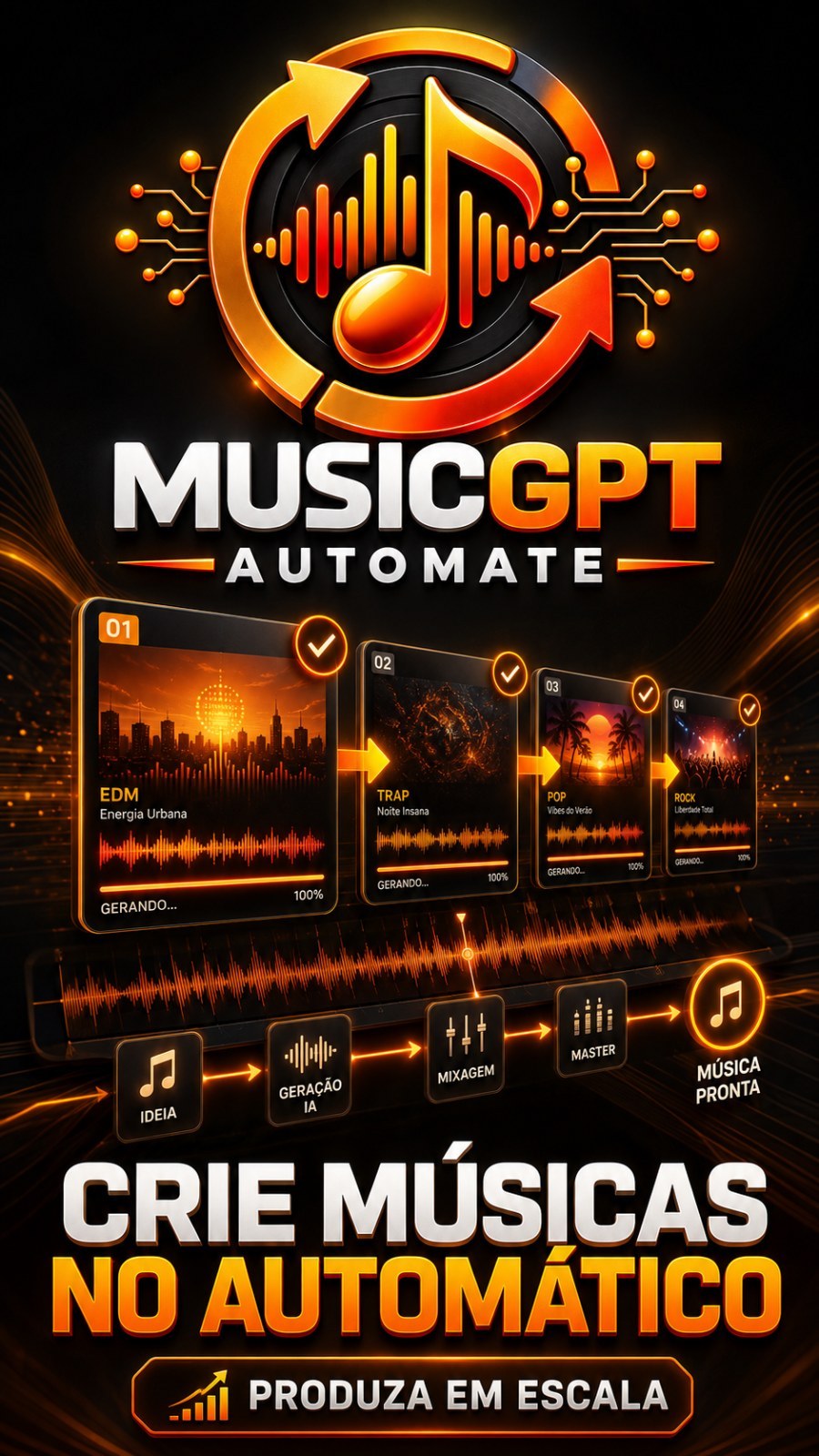
public demonstration without download or serial
Music Gpt Automate
MusicGPT Automate Create music in MusicGPT in batch and download everything to your computer by yourself. You write the style (or paste your lyrics), say how many songs you want and do something else: the program sends you one by one, wait...
285public views
Videodemo available
1related areas
Did you like this tool?
Take this for a stronger offering: full access, combo with training or the master version with larger window.
Presentation
Specifications
Compatibility
Windows 10/11. Recommended: Windows 11.
Last updated22/09/2026 15:44
Public access typePresentation, video and description only. Download and serial remain protected.
Purchase Shortcut
This space welcomes those who have already seen the presentation and are ready to move on.
What This Tool Does
MusicGPT Automate
Create music on MusicGPT in batch and downloads everything to your computer by itself. You write the style (or paste your lyrics), say how many songs you want and do something else: the program sends you one by one, waits for each track to be ready and saves the files in the folder you choose, with an organized name.
Video: see it working
If the video does not appear on your device, click here to watch on YouTube.
How to access
Download the program from this page and install it on your Windows. It opens in your browser, on your own machine — it's not a website, you don't need to leave anything open on the internet.
To use you need two accounts: your Like Points account (the same as the purchase, used to enter the program) and your MusicGPT, where the songs are actually generated. The program does not create an account on MusicGPT for you: it uses your account and your plan there.
What does he do for you
- Creates in batch, without you looking. He says "I want 30 songs" and he sends them one by one, respecting the interval between uploads so as not to overrun the website.
- Download it alone on your PC. As soon as the music is ready, the file falls into the chosen folder. You don't need to log into MusicGPT to download anything by hand.
- Write lyrics and prompts with artificial intelligence. You just give the style or the theme; he writes the title, lyrics and musical description for each track — all different from each other.
- Accept your ready-made letters. Do you have written lyrics? Paste one, paste several at once, or point to a folder full of notepads: each file becomes a song.
- Organize files. It numbers from oldest to newest (001, 002, 003...) and, if you want, saves a notebook with the lyrics and style of each song.
- Do not repeat what you have already downloaded. It saves what has already arrived on your PC and shows what still needs to be downloaded from your MusicGPT library.
- Works hidden. Your browser window can stay out of your way, so you can continue using your computer as normal.
- Queue with history. Several requests can be queued, each one saved in its own folder, and you can see what is happening in each one on the screen.
- In 6 languages. The program screen is in Portuguese, English, Spanish, French, German and Japanese — change to the little flags in the top corner.
The six ways to create
In the field "How to create" you choose where to start. Only the fields for that option appear:
- I just say the style — you choose (or type) the musical style, for example "modern sertanejo sofrência" or "lo-fi hip hop". Artificial intelligence writes lyrics, title and production for each song. It's the fastest way.
- Give a theme — you write the subject ("overcoming those who start over from scratch") and choose the style; the AI creates everything from there.
- I already have a prompt ready — paste that prompt you already use. By checking the highlighted option, the AI reads your prompt and writes unique lyrics and title for each song; If you deselect it, the prompt will be the same, without any changes.
- I have a letter — paste the letter and choose the style. AI only sets up production.
- I have a folder with several notebooks — points to the folder and each text file becomes a song. If the file has the style below the letter (after "Style:", "Prompt:" or a line with three dashes), it is used as is.
- I'm going to paste several letters at once — stick everything in one box. It separates itself when there is a blank line between the letters, numbering (1), 2)…) or three dashes between them — and shows the list of what it understood before you send it.
In any option you still define how many songs either (from 1 to 200), the language in which the AI will sing (20 languages, from Brazilian Portuguese to Japanese) and you can book "No vocals" to generate instrumental. In the options with your handwriting, the brand "Stay true to the style I wrote" prevents the AI from messing with what you typed.
Settings (all from the program screen)
- Where to save songs — the default folder is inside the program folder; switch to wherever you prefer. The button Open takes you to her.
- Save these songs to — when sending a batch, you can choose a folder just for it. So a batch of country music goes to one folder and another of forró goes to another, even though they are both in the queue.
- File format — MP3 (default) or lossless WAV. WAV depends on your MusicGPT plan; If he doesn't release it, the file comes in MP3.
- Also save the lyrics and style to a text file — comes off. When you turn it on, each song gets a notepad next to it with the title, style and lyrics.
- Number the files — on by default. Put 001, 002, 003… in front of the name, from oldest to newest, so the album is in the right order.
- AI Quality — appears only when you use your own key; Leave it on "auto" and it will choose the best model released for your key.
- Download music to my PC automatically - connected. When you turn it off, the songs continue to be created in MusicGPT and you can then download them via the "My Songs" list.
In Advanced options (collected, most never need to touch):
- Interval between sending — default 15 seconds. Please increase if MusicGPT complains about overordering.
- Maximum wait for music — default 900 seconds (15 minutes). This is the time he waits for a track to be ready before giving up on it and moving on.
- Attempts when it fails — pattern 3. How many times does he repeat a failed submission.
- Pasted letter separator — three-stroke pattern. It only changes if you separate your letters in another way.
- Rotate hidden - connected. The work browser stays out of your way.
- Let automatic download pick up old songs too — off. When turned on, it also downloads what already existed in your account before you installed the program.
- Recatalog library from scratch — replays your MusicGPT playlist, useful if something gets out of sync.
- Diagnosis — just for support: shows how the program is seeing the MusicGPT screen when something stops working.
Step by step
- Extract the entire folder from the zipped file and open the program. It appears alone in your browser.
- Enter with email and password for your Like Points account (same as purchase).
- Click "Connect to MusicGPT". Opens a Chrome window: sign in to your MusicGPT account there. You only need to do this once; then he remembers.
- Return to the program screen and click "I'm already logged in". The indicator at the top confirms that the account is connected.
- In "What do you want to create", choose one of the six ways, fill in the fields and say how many songs you want.
- Check the folder at "Save these songs to" and click To start.
- Follow the column on the right: the queue shows the progress and the list "My songs on MusicGPT" shows what has already been downloaded and what is missing. The files will arrive in the chosen folder.
- It ended? Click "End program", at the top of the screen.
Required API Keys
You do not enter any key within the program. The keys are registered in your account here on the panel and the program takes everything on its own when you log in. If your plan already includes the use of artificial intelligence, you don't need to register anything — you can skip this section.
Anyone who wants to use their own key (so as not to consume the plan quota) can register one of the following:
- OpenAI (optional) — used to write lyrics, titles, and song descriptions. Register my key OpenAI · video showing how to get the key
- OpenRouter (optional, alternative to OpenAI) — same function, with other models. Register my key OpenRouter · video showing how to get the key
Important: if you register or exchange a key with the program open, close and open the program again — keys are read upon opening.
The generation of the songs itself is done in your MusicGPT account and consumes your plan credits there. This doesn't go through any key: it's your normal login, done by you in the Chrome window.
Requirements
- Windows 10 or 11.
- Google Chrome installed — the program uses the Chrome you already have on a daily basis.
- Internet connected. Without internet it doesn't enter or generate anything.
- Active account on Like Points and account on MusicGPT with available credits.
- You don't need to install anything else: no programming, no extra components.
Limitations
- Each submission to MusicGPT returns two versions of the same song — that's how the site works. In the download list there is the option to download only one version of each.
- Up to 200 songs per batch. For more than that, send another batch later.
- The speed depends on MusicGPT and your plan there: at busy times each track takes longer.
- Lossless WAV is only available if your MusicGPT plan offers this format; otherwise comes MP3.
- Every now and then MusicGPT asks for confirmation "I'm not a robot". In this case, the program warns you on the screen and you check the box in the Chrome window — then it continues on its own.
Common Problems
- "You need to connect your MusicGPT account" — the queue is paused until login. Click "Connect to MusicGPT", sign in to your account in the Chrome window and then click "I'm already signed in".
- I can't find the Chrome window — click "I couldn't find the window" that she comes forward. This happens when the "Run hidden" option is turned on.
- "Confirm that you are human" appeared — is the protection of the site, the program cannot mark it for you. Click on "I couldn't find the window", check the box and that's it.
- Songs are not downloading — check that "Download music to my PC automatically" is checked and that the chosen folder still exists. Use "Download the Missing" to pick up what's left behind.
- "No credits" or shipping refused — is your MusicGPT account running out of balance. Reload there and click Start again.
- The lyrics didn't come out the way I wanted — check "Keep true to the style I wrote" in the handwritten options, or use "I already have a prompt ready" to deselect creation by artificial intelligence.
- I registered the key and it says it doesn't have it — close and open the program: the keys are read when opening.
- I closed the browser tab — the program turns off on its own in a few seconds. To open it again, just click on the icon again.
- Something stuck — click Help and then "Download error report". The file is saved on your Desktop; send it to support.
Want The Complete Ecosystem?
After reading the details, many people prefer to guarantee greater access rather than deciding tool by tool.
Other Tools to Show Along